
Adding Google Reserve to your salon’s profile makes it easy for clients to book a service directly from Google Search or Maps. With the Google Reserve Book Online button, clients can quickly choose a service and time without needing to call or visit your website, helping keep your bookings full. Follow the steps below in Phorest to get your salon set up so the button can appear on your profile.
Checking Your Salon Details
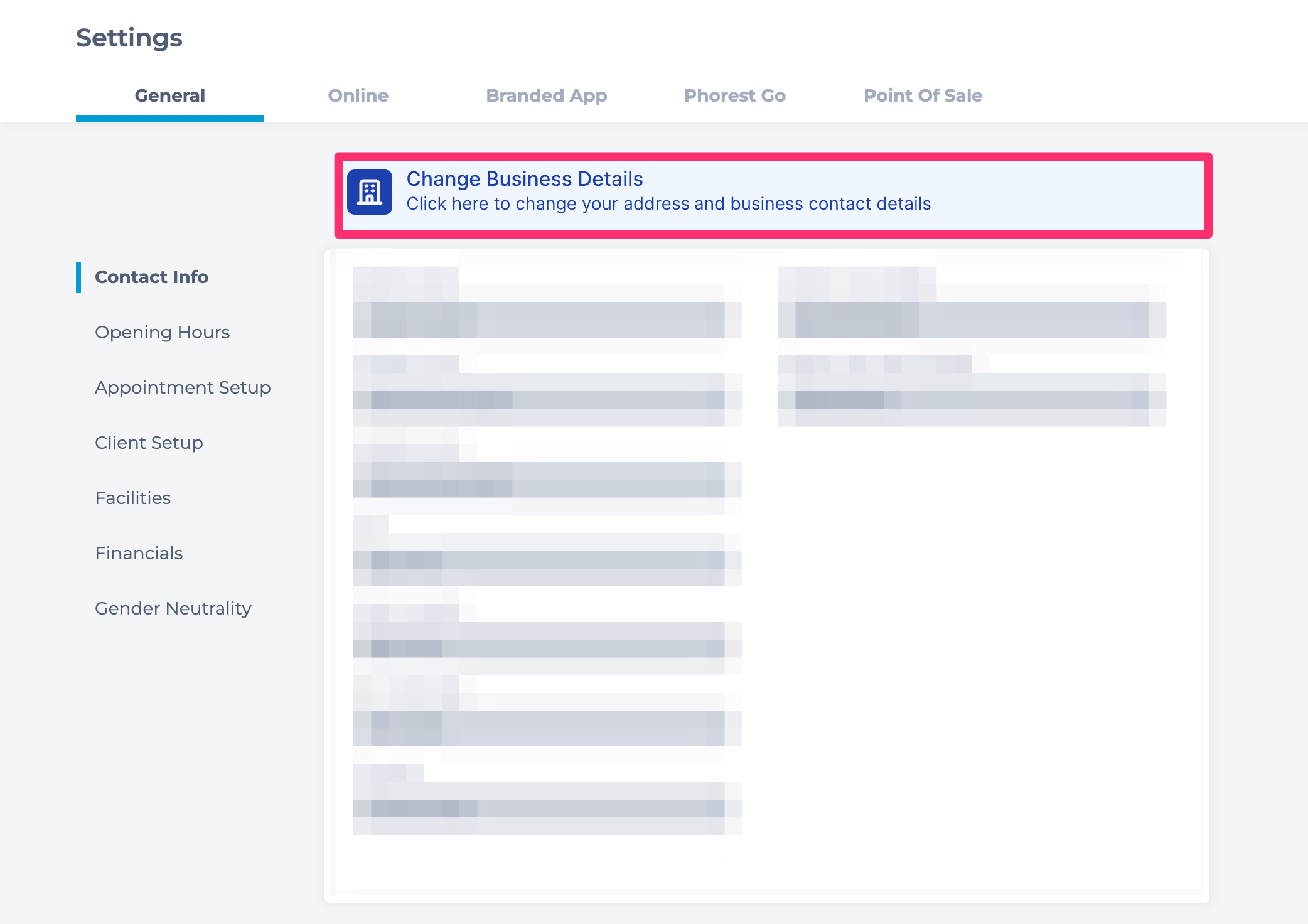
Before enabling Google Reserve, make sure your salon details in Phorest are correct and match your Google Business Profile exactly. Go to Manager, Settings, General, Contact Info, and then Change Business Details. Update anything necessary and submit the form.
Enabling Google Reserve
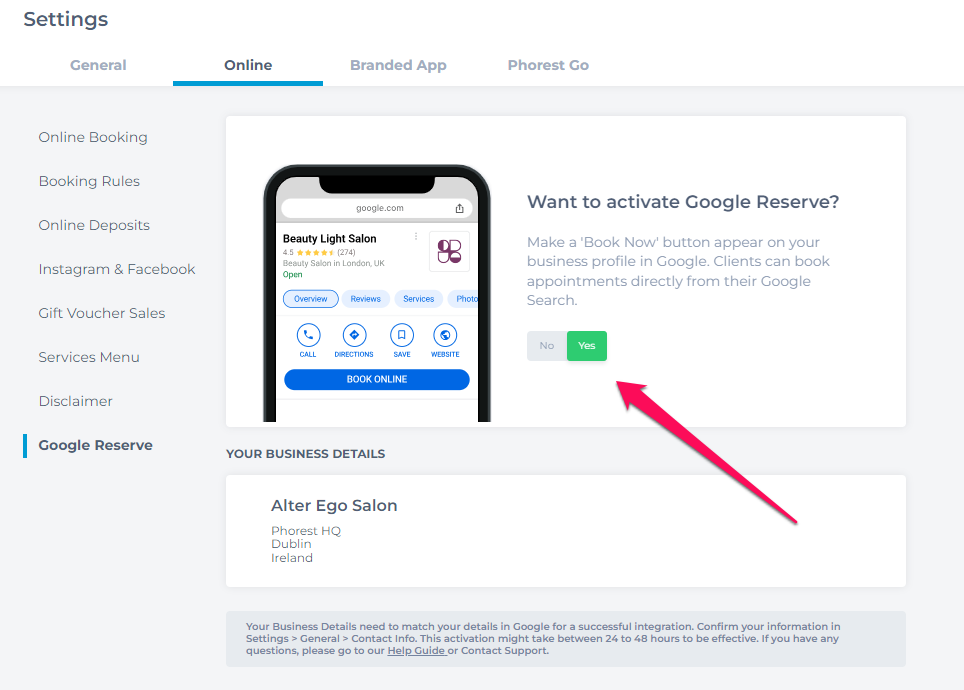
- In Phorest, go to Manager, Settings, Online, then Google Reserve.
- Make sure Online Booking is enabled in Phorest.
- Toggle the Google Reserve feature on.
- Click Save.
- It can take 24 - 48 hours for the 'Book Online' button to appear on your Google Business Profile.
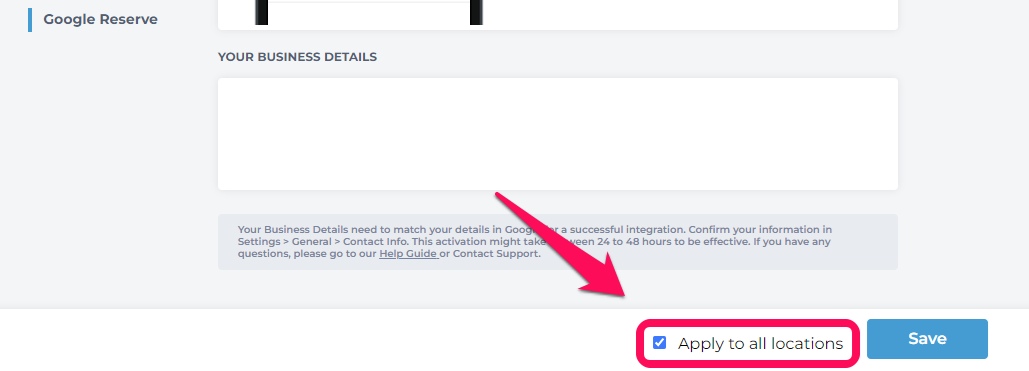
- If your salon has multiple locations, you can select 'Apply to all locations' to enable the button for all of them.
Important Notes
If you do not see the Google Reserve feature in Phorest, your subscription may not include it. Phorest are happy to help you explore upgrading if you contact them.