How Can We Help?
How to activate Salon Spy in Salon IQ
Salonspy is an award-winning, verified review platform and directory specifically for the hair, beauty, and wellness industry. It helps salons, spas, and stylists collect, manage, and showcase authentic client feedback, while also providing data insights to improve services and boost online reputation. It integrates with Salon IQ to automate reviews.
These reviews can
- Be shared on your website
- Be shared on your social media platforms
- Help to improve Google rankings
- Provide a real insight to what customers think
- Be used as a tool for excelling team morale, as part of appraisals, one to one's or team meetings
How to activate Salon Spy
Main Menu > Settings > Salons > Details
The below fields must all be completed
Salon Name
Address box 1, 2 , 3
Town
Post code
Phone Number
Telephone Number

All boxes must be completed, if required replicate your town in address box 3. Once complete click "Save"
Once complete, the next step is to scroll down the menu under Salon Settings and select Salon Spy.

You will need to select "Onboard Salon" from the available options.

This will then generate a message "Message: OK"
The final action is to activate the Salon Spy SMS, to do this:
Main Menu > Intelligent Marketing > Automation > Custom
Search for the option "Salon Spy" and click on it.

You will need to active the toggle at the top right corner to switch on the SMS.

Once complete, please press "Save"
To view client reviews:
Main Menu > Intelligent Marketing > Client Feedback

Enter the date range of the reviews you wish to load.

You can click on each client and the review the client processed will load.

You can choose to publish the reviews on the Online Booking Portal Reviews section or choose to hide them by selecting Yes or No option to "Show Online"
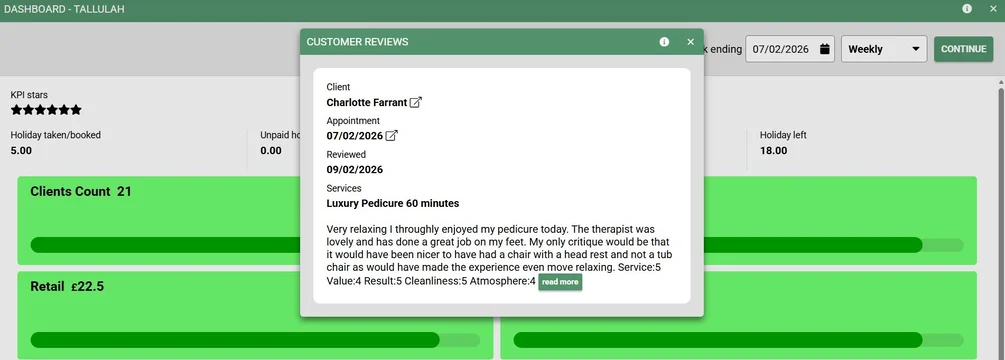
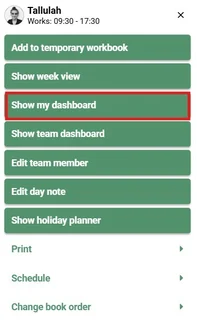
Team Members can also view reviews left by clients, click on the team member name of the appointment screen and select "Show My Dashboard"
You can edit the date range for the review left by changing the date option on the top right.
By clicking on "Client Feedback" this will load the reviews left within the specified date range