
Adding Google Reserve to your salon’s profile makes it easy for clients to book a service directly from Google Search or Maps. With the Google Reserve Book Online button, clients can quickly choose a service and time without needing to call or visit your website, helping keep your bookings full. Follow the steps below in SalonIQ to get your salon set up so the button can appear on your profile.
In the Salon IQ dashboard, you need to ensure your salon’s details are right in the Salon Settings screen.
If you have multiple salons in a group, you need to ensure that you’re selecting the specific one you want to manage. Go to Menu, Choose your salon then go to Menu > Refresh.
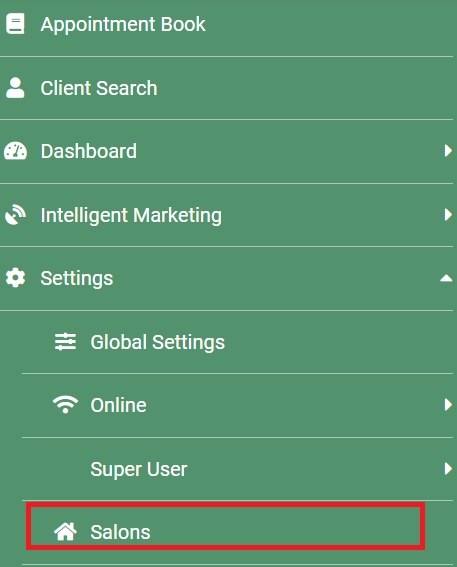
Open Salon Settings and confirm the following:
- Address - ensure it is correct and complete.
- Geocode - click Update to generate longitude and latitude. This is essential for Google to locate your salon.

- Phone number - ensure it’s the correct contact number.
- Website - (optional)
- Opening times - set default salon schedules.
- Block and slot size - block = large lines (hourly), slot = smaller lines (15 mins).
- Online cancellation policy - allow/disallow cancellations and set notice period.
- Terms and conditions - link to your online T&Cs.
- Booking screen message - the message shown to clients after booking.

Configuring the services you wish to appear on Google Reserve
To configure services for Google Reserve, go to Menu, then Settings, and select Services.

Use the Category tab to organise your services.

For each service you want to appear on Google Reserve, click the service and go to Online Bookings.
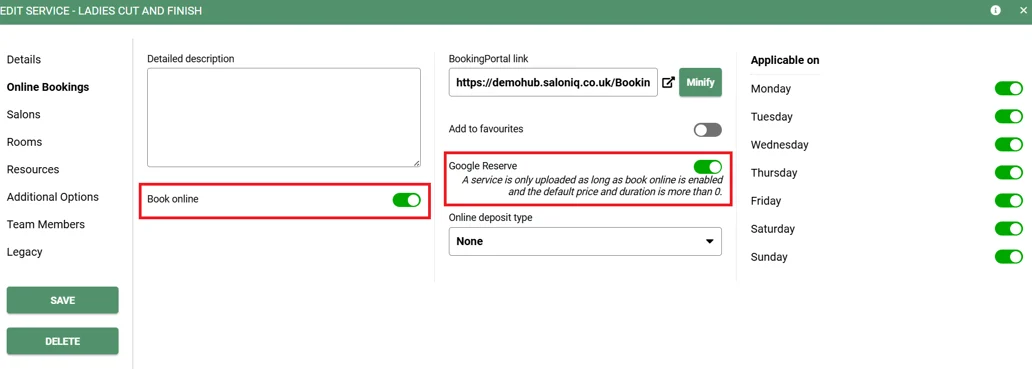
Toggle both Book Online and Google Reserve to green, and select the days when the service can be booked. When you have finished, click Save.
Please be aware that service names can’t include special characters such as ( ) - & @ * $ | % ~, with the exception of the underscore _. For example, a service called Cut & Finish should be renamed to Cut And Finish.
Assigning Team Members
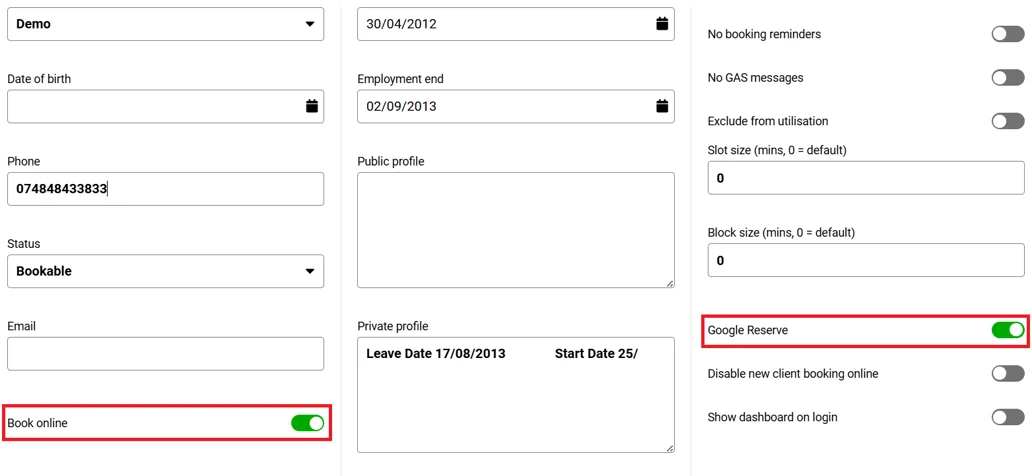
To set up your team members, go to Menu, then Settings, and select Team Members. For each person, switch on Book Online and Google Reserve at the bottom of their Details section. Make sure they’re scheduled to work at least once in the next 40 days and that the right services are assigned to them. Once everything is ready, click Save.